Tuesday, 24 November 2026
Every visitor laptop that walks into a meeting room is a test, and the room either passes or fails it in the first sixty seconds. A sales head arrives with a MacBook, a client brings a locked-down corporate Windows machine, a consultant opens a Chromebook. Each expects to plug in, or tap a button, and run their own call on the room's camera, microphones and display. When that works, nobody notices the AV. When it does not, the meeting starts ten minutes late with three people crouched under the table.
Bring Your Own Device (BYOD) and Bring Your Own Meeting (BYOM) rooms are now standard in Indian enterprises running mixed Teams, Zoom, Meet and Webex estates. But "just let people use their laptop" is a design brief that hides real engineering decisions. This guide compares the connectivity architectures, explains where USB extension and peripheral switching fit, and sets out the laptop compatibility checks that decide whether a room actually works.
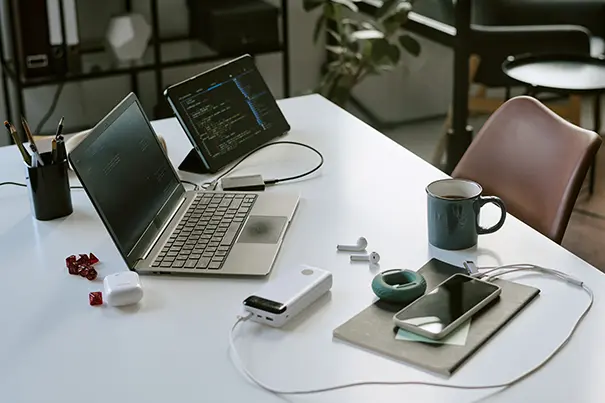
BYOD vs BYOM: Two Different Promises
BYOD promises content sharing. The laptop sends its screen to the room display, by cable or wirelessly, and the meeting itself may run on a native room system. BYOM goes further: the laptop runs the call on whatever platform the host uses, and borrows the room's camera, microphones and speakers as if they were its own USB devices.
That difference changes the design. BYOD needs a video path from laptop to display. BYOM needs that video path plus a two-way USB path carrying camera video and audio back to the laptop, with enough bandwidth and the right device classes. If you are still mapping how signals move through a room, our AV signal flow guide for IT managers is a useful primer.
Four Connectivity Architectures, Compared
| Architecture | How it works | Best fit | Watch-outs |
|---|---|---|---|
| 1. Direct USB-C to table hub or video bar | One cable carries video (DP Alt Mode), USB peripherals and laptop charging | Huddle and small meeting rooms | Short cable reach; laptop must support video over USB-C |
| 2. Table hub + USB extension over Cat6A | HDMI/USB-C at the table; USB extended to wall-mounted camera and audio | Medium rooms and boardrooms | USB 2.0 caps cameras at 1080p; 4K needs USB 3 extension |
| 3. Room PC with USB host switching | Native Teams/Zoom room; peripherals switch to the laptop on connect and revert on disconnect | Rooms that need native + BYOM | Hand-over timing, device re-detection, control integration |
| 4. Wireless presentation / wireless BYOM | Gateway receives Miracast, AirPlay or Cast; some expose room camera and mics via app | Flexible and hot-desk spaces | Network segmentation, app install policy, latency |
Most enterprise estates end up using more than one of these. A huddle room may need only a USB-C video bar, while a boardroom running a certified Microsoft Teams Room also needs a clean BYOM path for the client who insists on Zoom. Our article on why platform-agnostic does not mean platform-neutral explains why that second path matters.
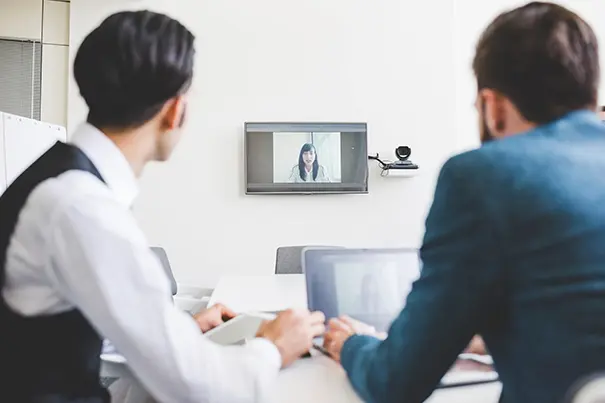
USB Extension: Distance, Bandwidth and the 4K Trap
A passive USB cable runs out of reach long before it gets from a boardroom table to a camera above the display. That is why USB extension, typically over Cat6A with HDBaseT or dedicated USB-over-copper extenders, is the backbone of medium and large BYOM rooms. Three planning rules prevent most failures:
- Match the USB generation to the camera. USB 2.0 extension supports many Full HD (1080p) cameras and speakerphones, but 4K video and advanced camera features may require USB 3 extension. If the room design depends on 4K framing or digital zoom, specify USB 3 extension end to end.
- Count devices and power. Camera, DSP, touch panel and a soundbar add up quickly. Confirm the extender's device limit and whether the far end needs local power.
- Keep it point-to-point and documented. Consumer hubs daisy-chained under a table are the most common source of "camera not detected" calls. Use one engineered path, labelled at both ends.
Peripheral Switching: Who Owns the Camera Right Now?
In rooms with a native room PC, the camera and microphones belong to that PC until a guest laptop needs them. A USB host switch hands the peripherals to the laptop when it connects and returns them to the room system when it disconnects. Done well, this is invisible. Done badly, the room PC keeps the camera, the laptop shows a black self-view, and the meeting stalls.
Good switching design means automatic hand-back on disconnect, a manual override on the touch panel through the room's command and control system, and testing the time it takes the laptop to re-detect devices. Consistent device names matter too, because Teams and Zoom remember the last camera and microphone they used.
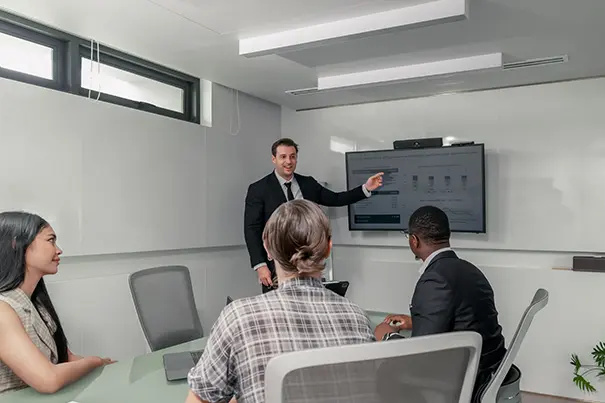
Wireless Presentation: Protocols and Networks
Wireless sharing removes the cable, but it brings the network into the room. Three native protocols dominate: Miracast (Windows and many Android devices, peer-to-peer), AirPlay (Apple devices, using Bonjour discovery) and Google Cast (Chrome and Android workflows). No single protocol behaves the same on every device, so enterprise gateways that support all three, plus an app or browser option, are the safer choice for mixed fleets.
The real work is network design: a guest/corporate split so visitors never touch the internal LAN, discovery that works across VLANs, 5 GHz channel planning in dense office floors, and IT security sign-off before the first device ships. Some wireless gateways now also offer wireless BYOM, exposing the room camera and microphones to the laptop, which is useful in flexible spaces but needs careful latency testing.
The Laptop Compatibility Checklist
Most BYOM failures are not AV failures. They are laptop assumptions nobody checked. Before finalising a design, audit the actual fleet:
- USB-C video support. Not every USB-C port carries video. The port must support DisplayPort Alt Mode or Thunderbolt; many budget and older laptops have data- or charge-only ports.
- Power delivery wattage. A 65 W table hub will not keep a 100 W workstation laptop charged through a two-hour review.
- Corporate security policy. Locked-down laptops may block unknown USB devices or app installs, which rules out app-based wireless BYOM.
- Class-compliant peripherals. Choose cameras and audio devices that work as standard UVC/UAC devices with no driver install.
- HDMI fallback. Keep a wired HDMI input for the laptop that will not cooperate. It will arrive on the day of the board meeting.
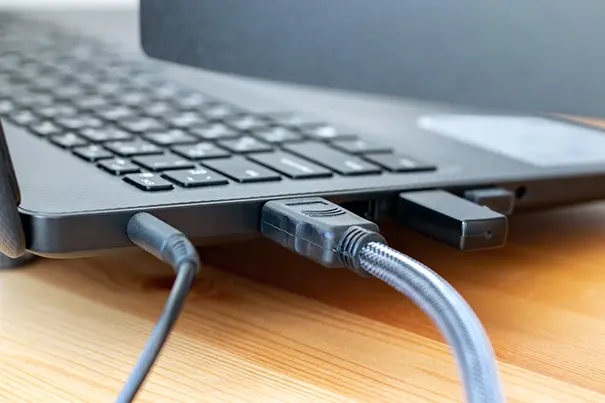
Design for the Fallback, Train for the Habit
Every BYOM room should have one labelled wired path that always works, a one-page quick-start card on the table, and a short onboarding session for the admin and IT teams who field the calls. Our user and operational training programme exists precisely because good rooms still need confident users.
How CMPPL Plans BYOD and BYOM Rooms
At CMPPL we start with the people, not the hardware list. Our pre-sales analysis and solution design stage audits your laptop fleet, platform mix, visitor profile and network policy before an architecture is chosen. Our system integration teams then build and test the room with the laptops your people actually carry, not a lab sample. Once the room is live, managed services keep firmware, switching logic and wireless gateways current as laptops and platforms change.
Technology should adapt to people, not the other way around. A well-designed hybrid collaboration room is one where any guest, on any laptop, is presenting or hosting within a minute.
Talk to CMPPL's design team about a laptop-fleet and room audit. Start a business enquiry.
About the Author — Sanjeev Kalhan, Founder & CEO, CMPPL
Sanjeev Kalhan founded Communication Media Products (India) Pvt Ltd (CMPPL) in 1995 and has led the company's growth into one of India's experience-led enterprise AV integrators. An IIT Delhi engineer and IIM Calcutta MBA, he champions a simple principle: technology should adapt to people, not the other way around.
Frequently Asked Questions
BYOD (Bring Your Own Device) means a user shares their laptop screen to the room display. BYOM (Bring Your Own Meeting) means the laptop runs the video call itself and uses the room's camera, microphones and speakers as USB devices, so it needs a two-way USB path as well as a video path.
In most rooms larger than a huddle space, yes. Passive USB cables cannot reliably reach from the table to a camera above the display, so USB extension over Cat6A is used to connect the table hub to wall-mounted cameras and audio devices.
No. USB 2.0 extension may limit 4K camera performance, depending on bandwidth and compression. If 4K framing or digital zoom is a design requirement, the room needs USB 3 extension end to end.
A USB host switch moves ownership of the room camera and microphones from the native room PC to a guest laptop when it connects, then returns them to the room PC when the laptop disconnects, so the room supports both native meetings and BYOM.
Mixed-device fleets usually need Miracast for Windows and Android, AirPlay for Apple devices and Google Cast for Chrome-based workflows. Enterprise gateways that support all three, with guest and corporate network separation, are the safer choice.
Not every USB-C port carries video. The port must support DisplayPort Alt Mode or Thunderbolt. Many budget or older laptops have USB-C ports that only handle data or charging, which is why a wired HDMI fallback is recommended.
CMPPL begins with a pre-sales audit of the client's laptop fleet, platform mix, visitor profile and network policy, selects the right connectivity architecture, integrates and tests the room with real user laptops, and supports it through managed services.
For any inquiries or to discuss your requirements, please feel free to contact CMPPL through our website at www.cmppl.com or by email at info@cmppl.com. Our team will be happy to assist you.
Published: 24 November 2026